How to add a layer in AutoCAD Map 3D
Order data for your area of interest in GeoPackage (QGIS) format.
Go to the orders page and download the archive when it’s complete.
Unpack the archive.
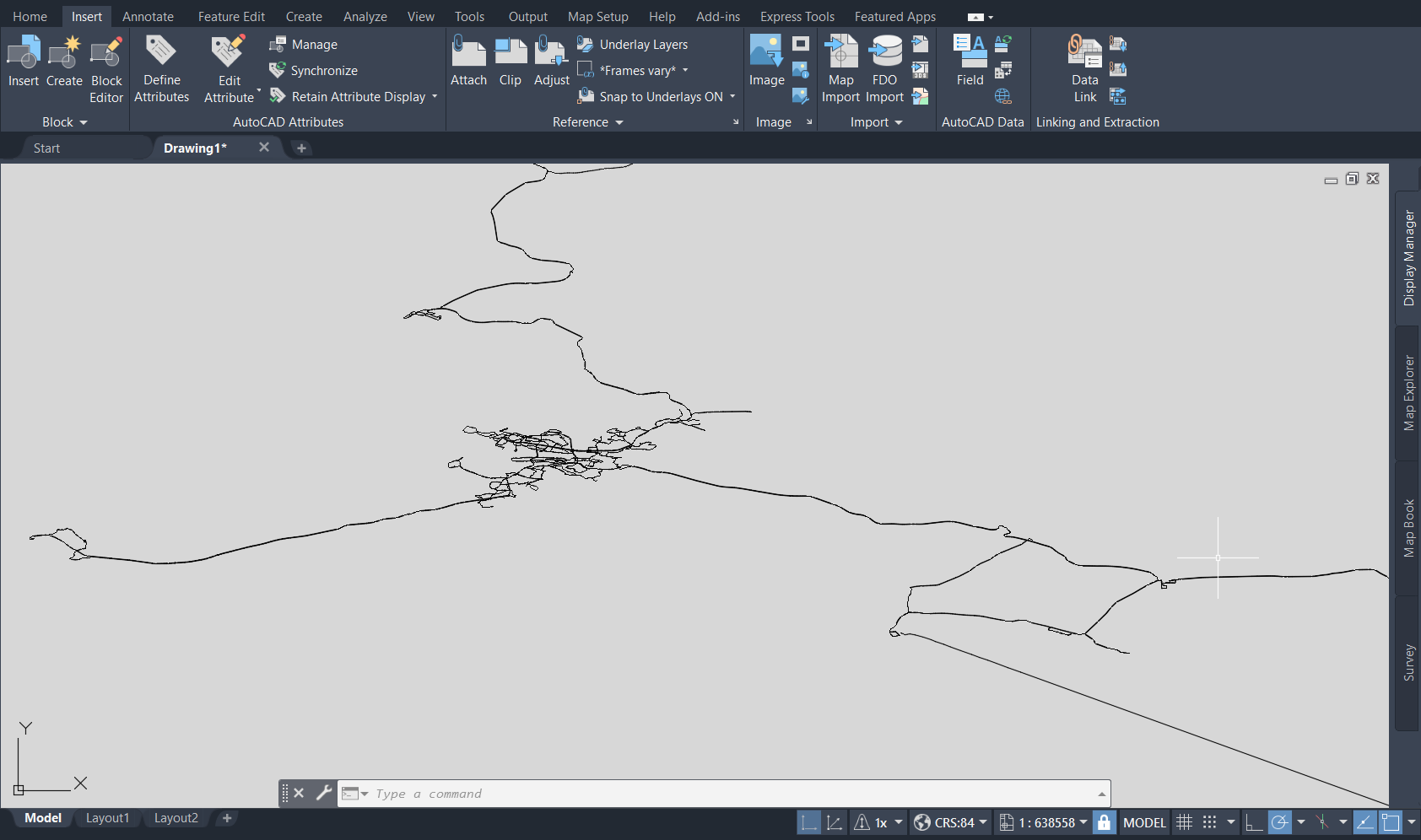
Launch AutoCAD Map 3D, select the “Map Setup” tab > “Assign” (Coordinate system), in pop-up window in the search bar enter the EPSG code - 4326 and select CRS:84 coordinate system from the suggested results.

Select the tab “Insert” > “Map Import”. In pop-up window from the drop-down list select the correct format “Files of type” - GeoPackage (*.gpkg) and choose the layer of interest.

The layer will be added to the AutoCAD Map 3D workspace.