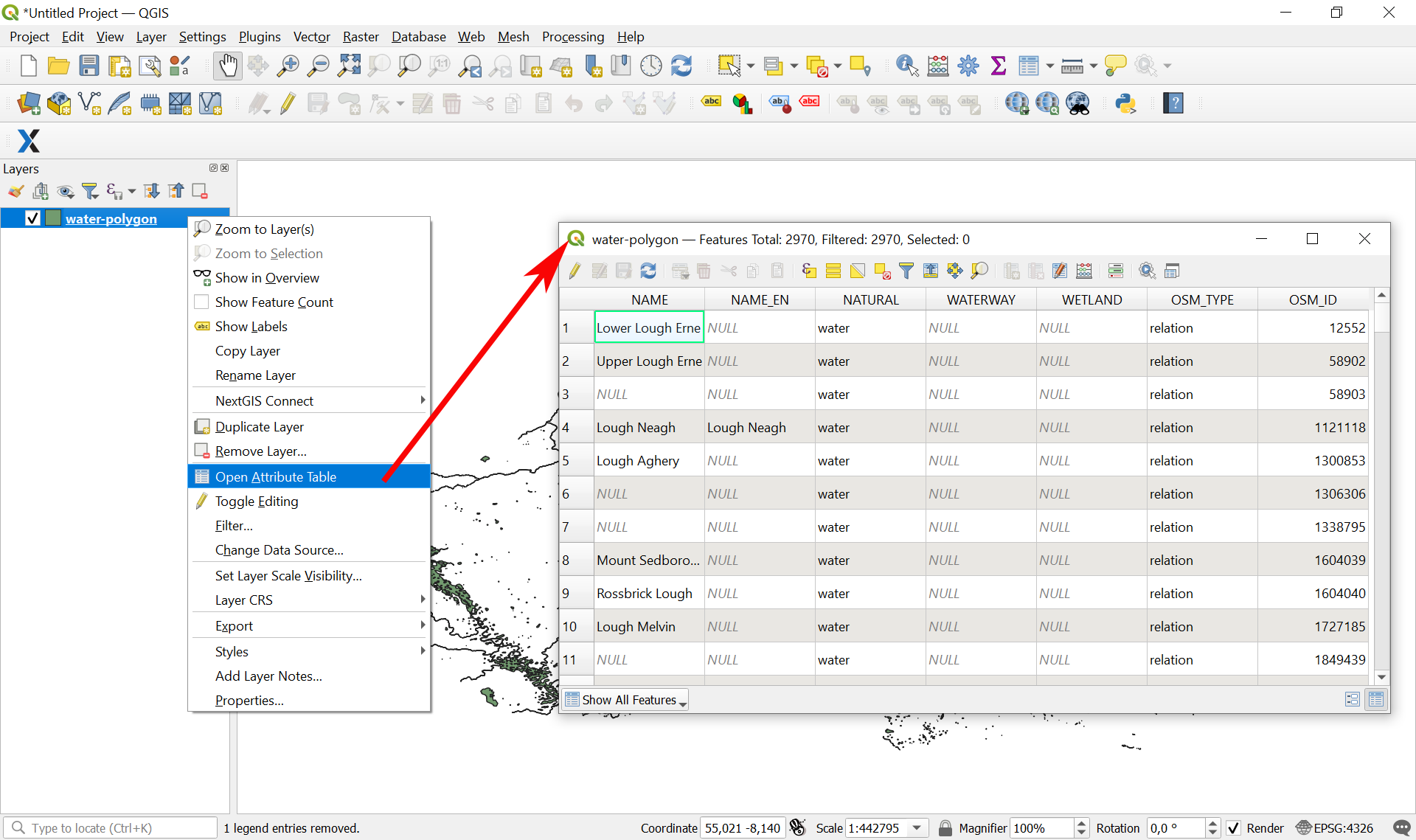
How to open a particular layer
Order data for your area of interest in Geopackage format (QGIS).
Go to the orders page and download the archive when it’s complete.
Unpack the archive.
Download and install QGIS.
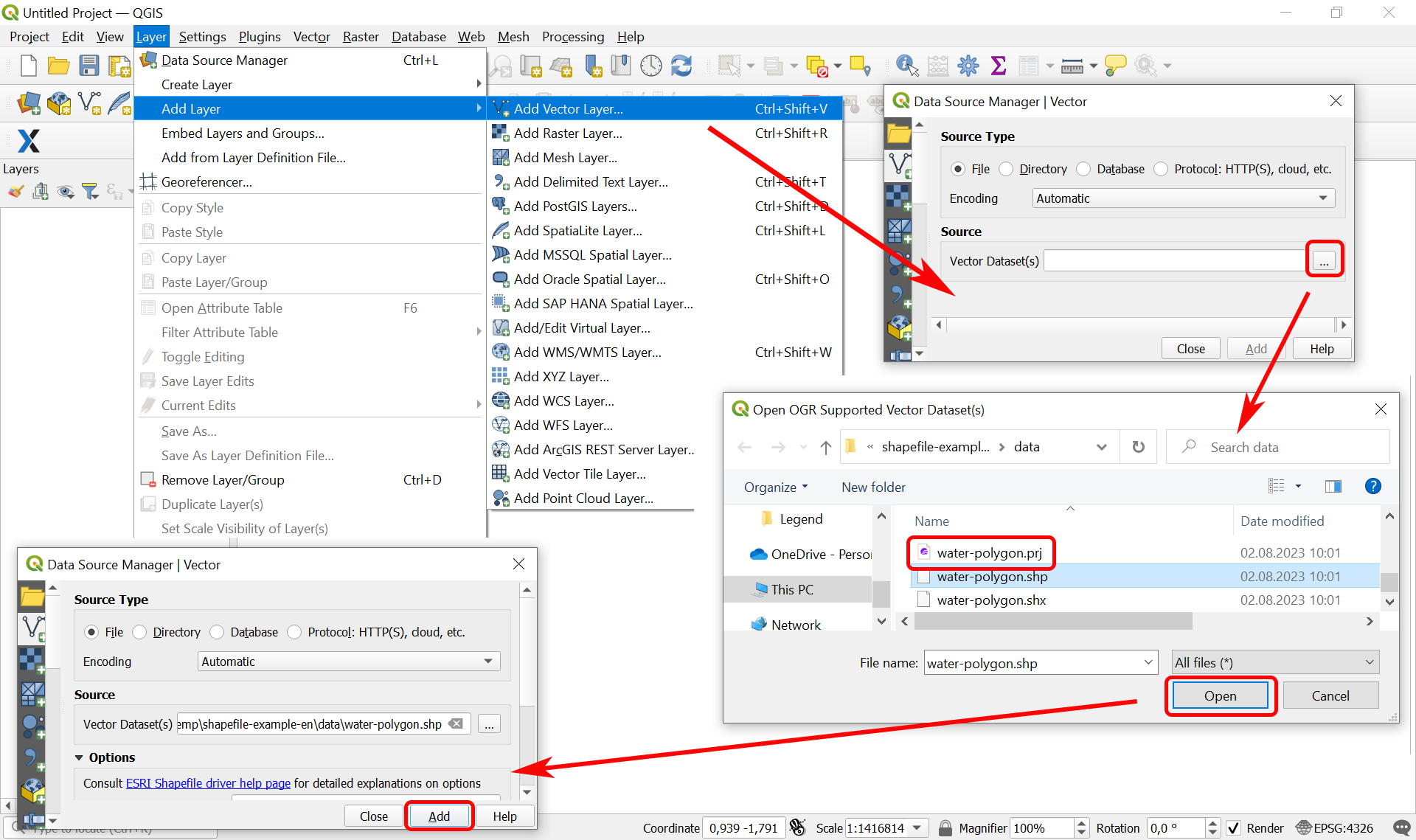
To open the particular layer, start NextGIS QGIS and from the main menu bar select “Layer” > “Add Layer” > “Add Vector Layer”. In pop-up window go to the folder where you unpacked the archive with the data and select the necessary layer. You can check here what the file names mean.
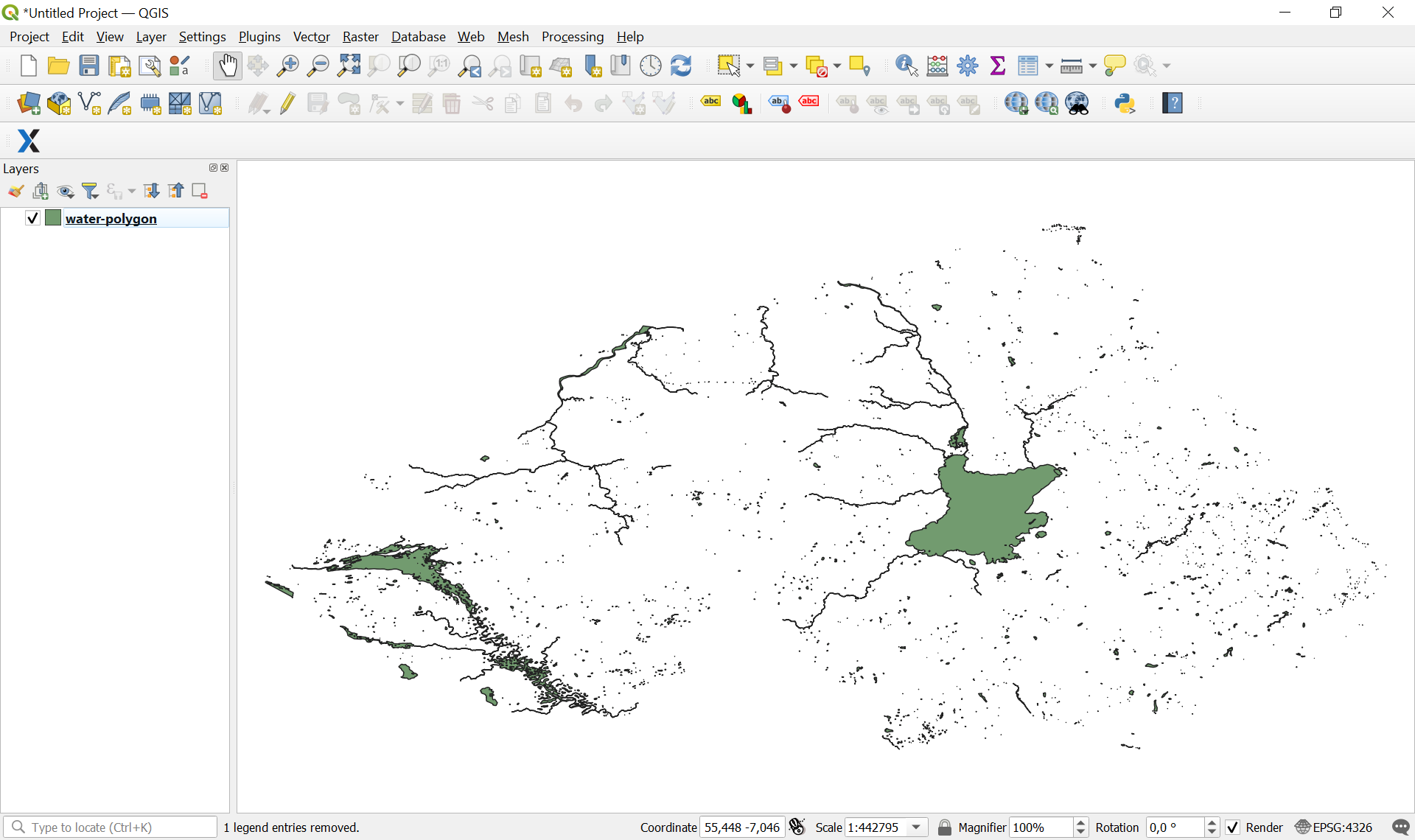
The layer will be added to QGIS and ready to go.
To view the attributes of a specific layer, right-click on it and select “Open Attribute Table” from the context menu. A window with the attributes (characteristics) of the objects belonging to the layer will appear. See the list of attributes for all layers here.